I think, the “Options” window in Outlook is one of the most tangled things in IT. The programmers were so smart to create real “spaghetti” window! Did they ever hear about “user friendly” interfaces? They could at least add the “Search” field somewhere – otherwise, it’s not possible to find anything.
Here is the way [...]
news and informations automotive,business,crime,health,life,politics,science,technology,travelautomotive,business,crime,health,life,politics,science,technology,travel
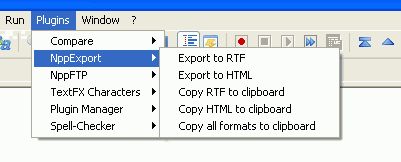
Here is the simple method to put the code with highlighting into the Word document:
Download and install Notepad++. This is easy-to-use and yet very powerful text editor with a lot of features, support of the plugins etc. Put your code into the Notepad++ edit window
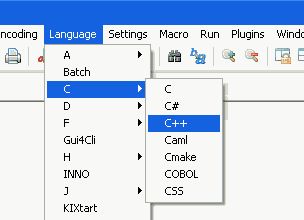
Configure the language, if Notepad++ did not do [...]
news and informations automotive,business,crime,health,life,politics,science,technology,travelautomotive,business,crime,health,life,politics,science,technology,travel
Dim objAPP, sMsg On Error Resume Next Set objAPP = GetObject(, "PowerPoint.Application") If TypeName(objAPP) = "Empty" Then sMsg = "not started" Else sMsg = "started" End If MsgBox "PowerPoint is " & sMsg, vbInformation, "PowerPoint" if sMsg = "started" then objAPP.Visible = true
news and informations automotive,business,crime,health,life,politics,science,technology,travelautomotive,business,crime,health,life,politics,science,technology,travel
To insert it manually, use Ctrl+Shift+Space
Selection.HomeKey Unit:=wdStory Selection.Find.ClearFormatting Selection.Find.Style = ActiveDocument.Styles("Normal") Selection.Find.Replacement.ClearFormatting With Selection.Find .Text = " " .Replacement.Text = "^s" .Forward = True .Wrap = wdFindContinue .Format = True End With Selection.Find.Execute Replace:=wdReplaceAll
news and informations automotive,business,crime,health,life,politics,science,technology,travelautomotive,business,crime,health,life,politics,science,technology,travel
|
|